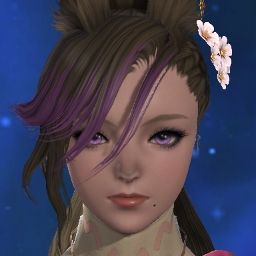
Here's a quick guide on how to get the best quality shot for a post on r/FFXIVGlamours.
PS4: "Share Button" to take the screenshot; L1+Touch Pad to hide UI (not needed with /gpose)
PC: "Print Screen" key to take a screenshot; the default file path for screenshots is:
C:\Users\<you>\Documents\My Games\FINAL FANTASY XIV - A Realm Reborn\screenshots
Step 1—Getting the directionThe first step to showing off your latest outfit is getting a good screenshot. Thankfully, in the current version (4.01 as of this guide), the "Group Pose" feature has you covered. While a little daunting at first, this is the de facto way to make your character look their absolute best.
/gpose
That's the command you put in your chat, or you can drag this icon to a hotbar:
Choose your animationBefore entering /gpose, you want to choose your animation. This can be done by doing any emote in your chatbar, or choosing an emote from your emote menu.
The "Select Action" toggle from the "Effects" menu (shown further below) is required in order to perform your animation in /gpose.
(Tip: To reset your animation, do /sit then stand back up)
(Tip: For animations like /cpose, the most recent pose will be used)
(Tip: You can combine animations with expressions by doing the animation and then choosing the expression)
Battle animationsIf you want to grab a snap of your character in action, then find a monster that is way lower level than you, and attack it with whatever animation you want to capture.
Choose your environmentLocation, location, location! Nothing makes a screenshot really POP than a nice background setting and time of day.
Theming your character to an environment can make a normal outfit look amazing (there's a reason a swimsuit model looks better on a beach than in someone's dining room!). The time of day is something that can't be controlled in your shot and will change even when in the /gpose menu, so plan accordingly.
Step 2—Getting the shotNow that you have everything chosen, it's time to put it all together. We'll go through the interfaces one-by-one, then talk about how to use them.
Go into /gpose.
The /gpose interface
After you see the camera shift, to open the /gpose interface, press "R" (or " * " on the Num Pad) on your keyboard or Triangle on your gamepad.
The /gpose menu is composed of three different sub-menus:
Camera controls1. The button to access the camera controls menu
2. The camera zoom/tilt function
(Tip: this zoom is separate from your mousewheel-zoom)
3. Color filters can change the look/feel of the camera lens
(Tip: Some filters will affect how the camera reacts to things like special effects, light, etc.)
4. Screen Effects provide an "overlay" of sorts to the shot
(Tip: Think of these like those "artistic" Photoshop filters you played around with before you knew how to use Photoshop)
5. Depth of Field (DoF) controls the "focus" of the camera (i.e. blur the background, etc.)
6. Limb Darkening (sometimes known as "Vignette") will darken the border of the screen to bring focus to the subject
Effects controls(Ed. Note: These are usually not very effective for showing off outfits, but I will include it here anyway for education)
1. The menu button to access the effect controls
2. Status will apply "status effect" animations/colorations/etc. to your character; the buttons below will apply/remove the status to your character, or to all characters
3. Frames will apply a border to your shot, similar to many mobile-phone selfie apps
(Tip: The "Select Action" is on by default, and is required to carry the animation into /gpose as outline above)
Lighting controlsThis is the crucial menu to control lighting of your character and the surrounding environment. We'll go into a little in-depth tutorial below the menu explanation.
1. This icon will open the lighting menu
2. The "eyeball" will face your character toward the camera (Keyboard: Spacebar / Gamepad: Triangle)
(Note: Depending on the animation, this will turn their body+head, or just their head)
3. This toggles lighting on/off for "Light 1" (Keyboard: X / Gamepad: R1)
4. These buttons freeze your character, or your party mid-animation (Keyboard 1 & 2 / Gamepad: L2 & R2)
(Tip: If you're taking a solo shot, rapidly pressing 1->2 is a good way to advance an animation "frame-by-frame" to get the perfect pose)
5. The three lights here toggle the respective "Lighting 1/2/3" on/off
6. Lighting controls:
Type 1/2/3 are as follows:
a. Type 1: Dim light (good for "replacing" natural light when not available)
b. Type 2: Standard Light (will light up your whole character)
c. Type 3: Bright Light (a very bright light that can be used to fill rooms)
d. The three sliders are for Red/Green/Blue values of the light; increasing intensity will also increase brightness
Getting good lightingThe trick to the lighting menu is that wherever your camera is at the moment, that will be the placement of the light when it is toggled. For example: if you have your camera zoomed in 100% on your character's face, and then activate light 1, 2, or 3, it will be as if you placed an invisible light bulb right next to your character's face.
Use this knowledge to apply good lighting principles as though you were setting up lighting for a photo shoot in real life. This can also be used to create artificial natural light (i.e. zoom far away, use Type 3, RGB 10,9.9 for a good fake sun, RGB 8,8,10 for a good moon).
You can also do fun tricks like putting your camera "inside" things (by zooming/panning) that would normally emit light, like an Atheryte, or a candle, and use the lights to exaggerate the light from those objects.
Step 3—Putting it all togetherNow that you have played around with things, you can use the photography principles, along with clever uses of the interface options to get some really great shots!
Let's cover some tips and techniques you can use to get your character to really pop!
FramingA good subject framing is crucial to any good shot. Making sure the shot emphasizes what you want the viewer to see, and in the case of a glamour, shows the whole outfit, is crucial!
Example:
This is bad. Don't do this. You notice that the feet are cut off at the very bottom of the shot, while the top 50% of the shot is trees. No one wants to look at trees when they can be looking at how beautiful you are!
Even panning the camera up a bit (Keyboard: WASD / Gamepad: Left Stick) helps frame the shot immensely.
"Okay, look this way, a little lower... there we go..."No one looks good photographed straight on. That's why your school photographer would move your chin or tell you to look a little to the side; granted, it didn't help your awkward teenage face much, but imagine if they hadn't done it!
The point of the "face camera" button, is not to face the camera, it's to face the camera "at the moment" so then you can move the camera.
Example:
This is an okay shot, but...
Isn't this more "majestic!" ... or something.
The trick is to use the face camera button to get your character to look "somewhere" and then rotate back to your original intended angle.
Remember, good photography principles apply, so don't be afraid to watch some YouTube videos on how to take pictures of people by professionals. You'd be amazed how much better your shots come out!
Bonus Round!Here's a few examples of all the principles put together.
Let's use this poor little guy:
Let's do a "Royal Authority" on him (spoiler: it killed him) to store up the animation...
We'll go into /gpose, freeze at the end of the animation, apply some lighting and screen filters and...
Voila!
Now, let's get really crazy!
As a level 70 PLD, let's hop into normal-mode Garuda with an undersize party (i.e. just one person!)
Let's aggro Garuda, do a quick fast blade, and hop into /gpose mid-fight. Don't worry, if you're 70, NM Garuda can't actually hurt you, so you're likely to auto-attack her to death while in /gpose quicker than you'd be in any real danger.
We'll throw a little filter on there, pan the camera around and:
Not bad for a few minutes of fiddling!
Now go forth and be beautiful! Glamour for the people!