The user interface, or UI for short, refers to the various on-screen elements and menus through which a player interacts with the game. The UI in FFXIV can be adjusted in myriad ways to ensure an enjoyable gaming experience.
This guide will explain how to adjust the UI, and offer tips to help you navigate the game.
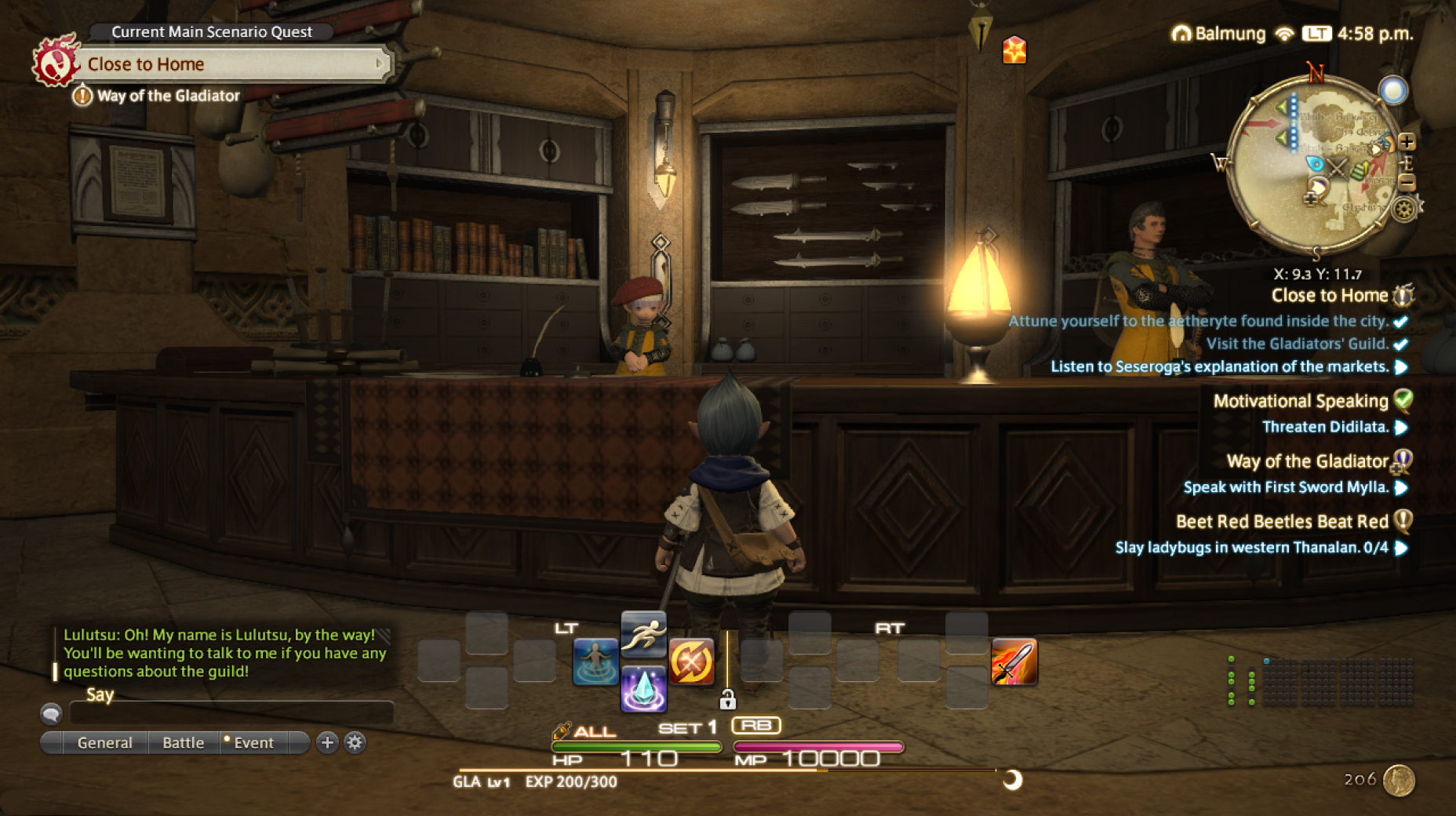
Use the default settings…
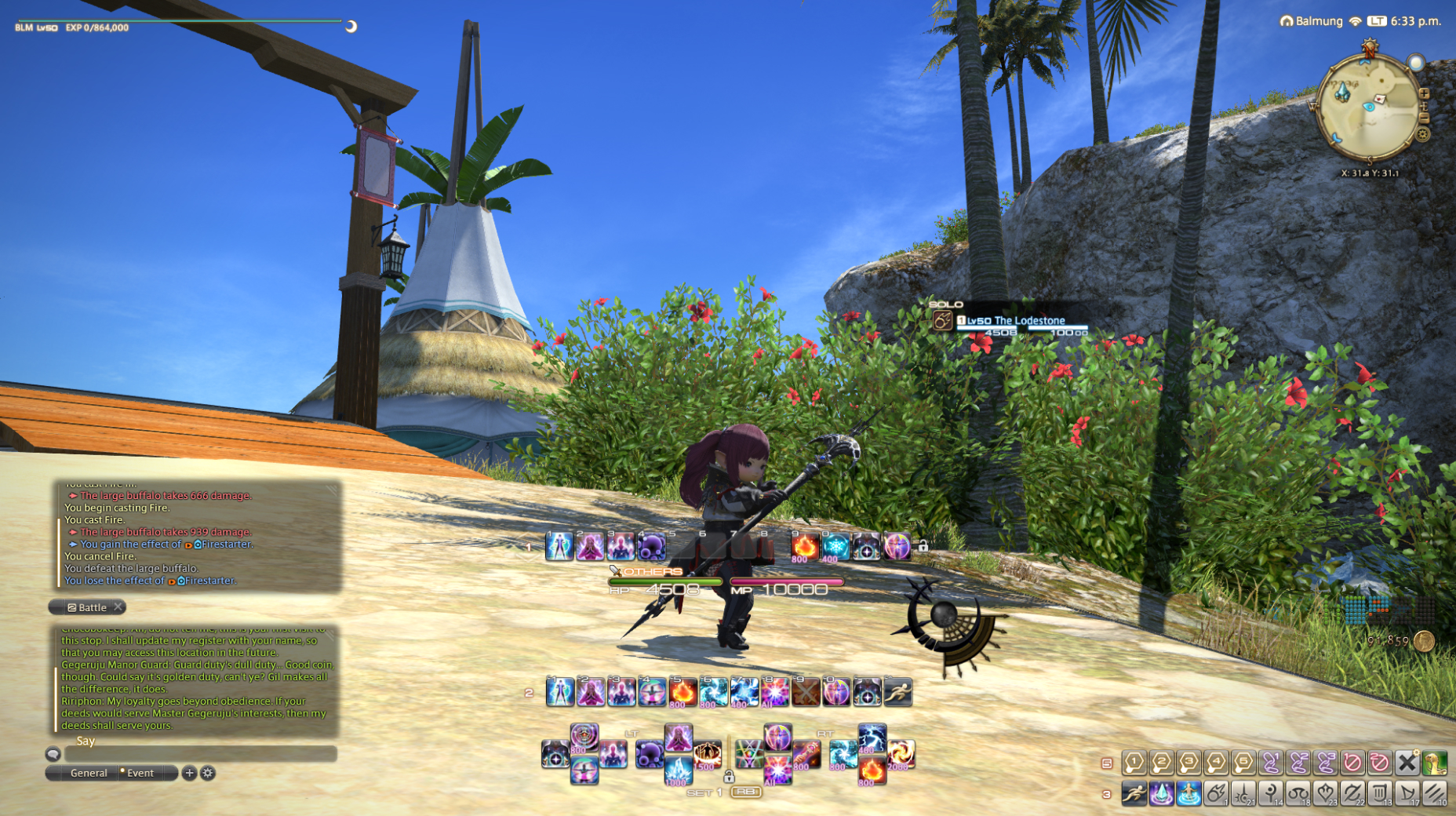
Or try something creative!
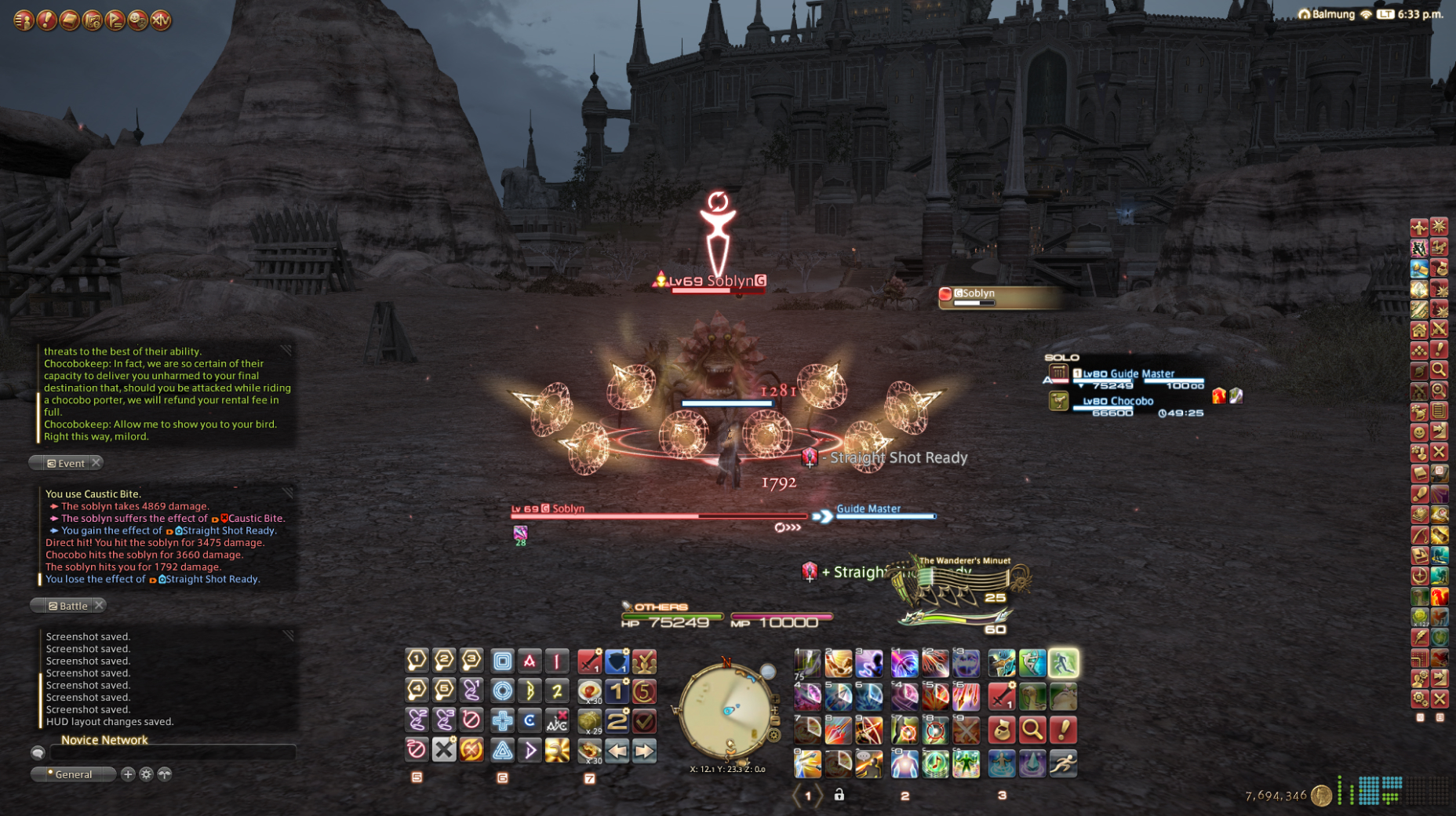
The possibilities are endless!
Use the default settings…
Or try something creative!
The possibilities are endless!
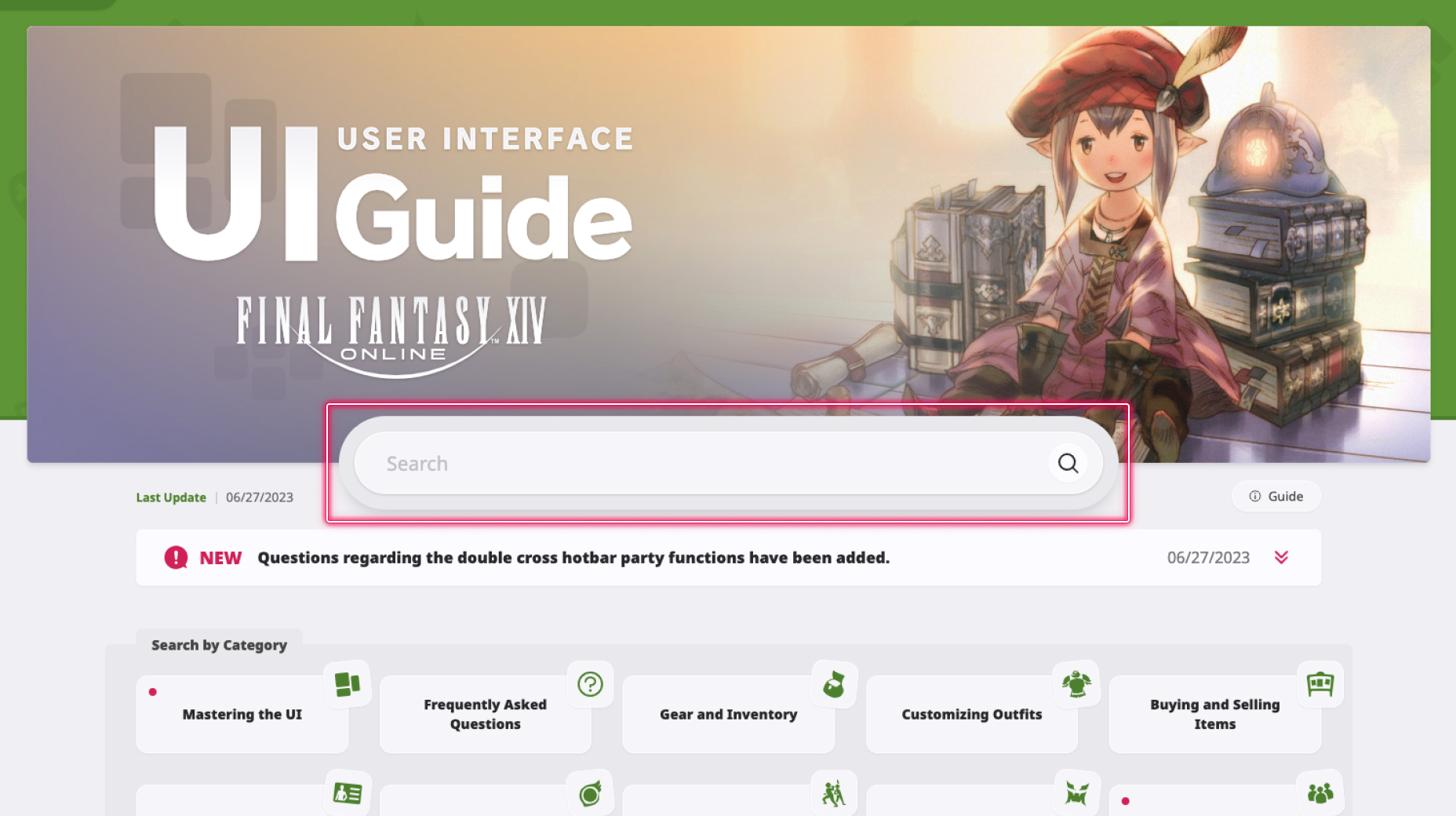
1. Enter a term to search.
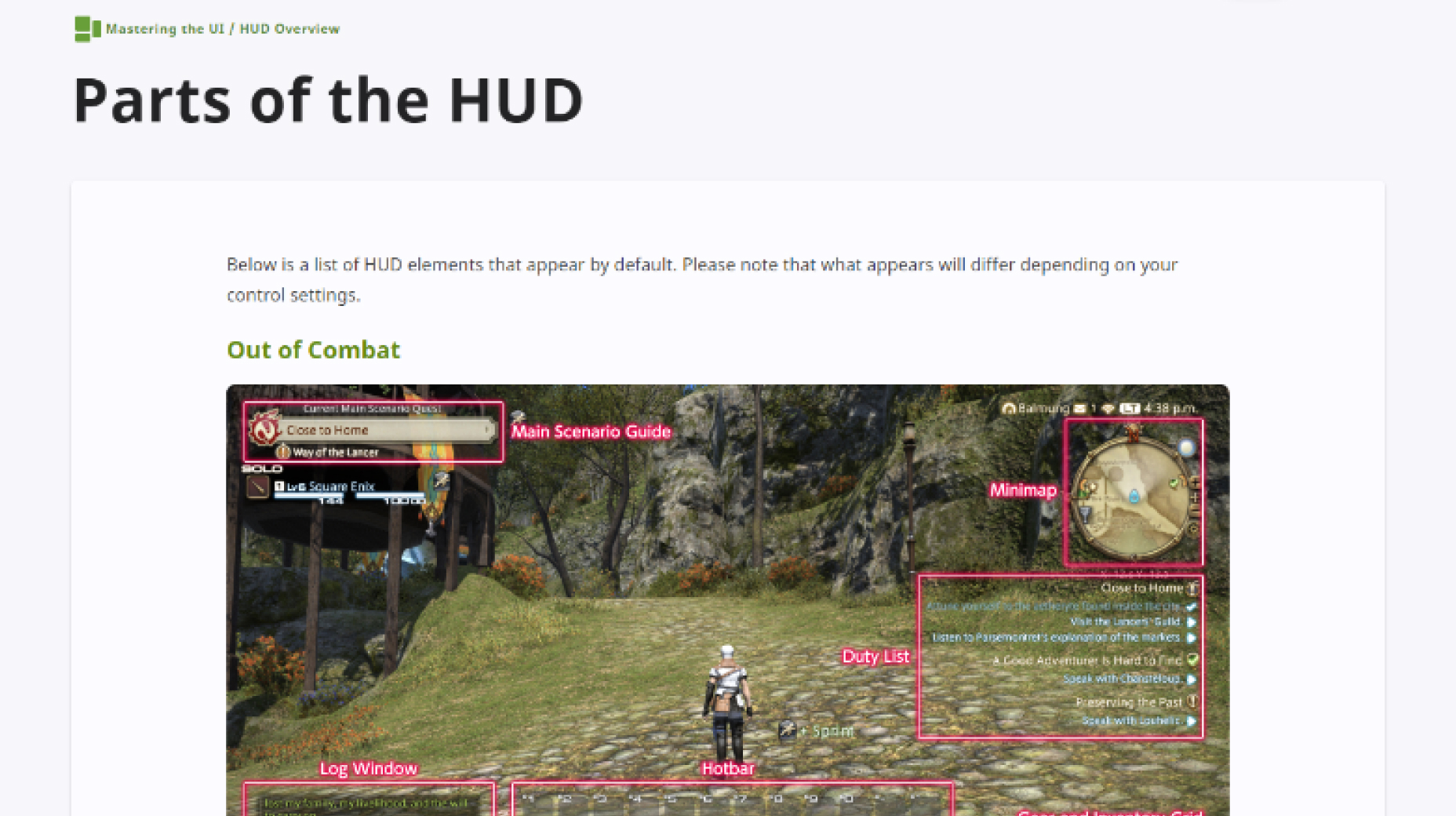
2. Find a topic and review its contents.
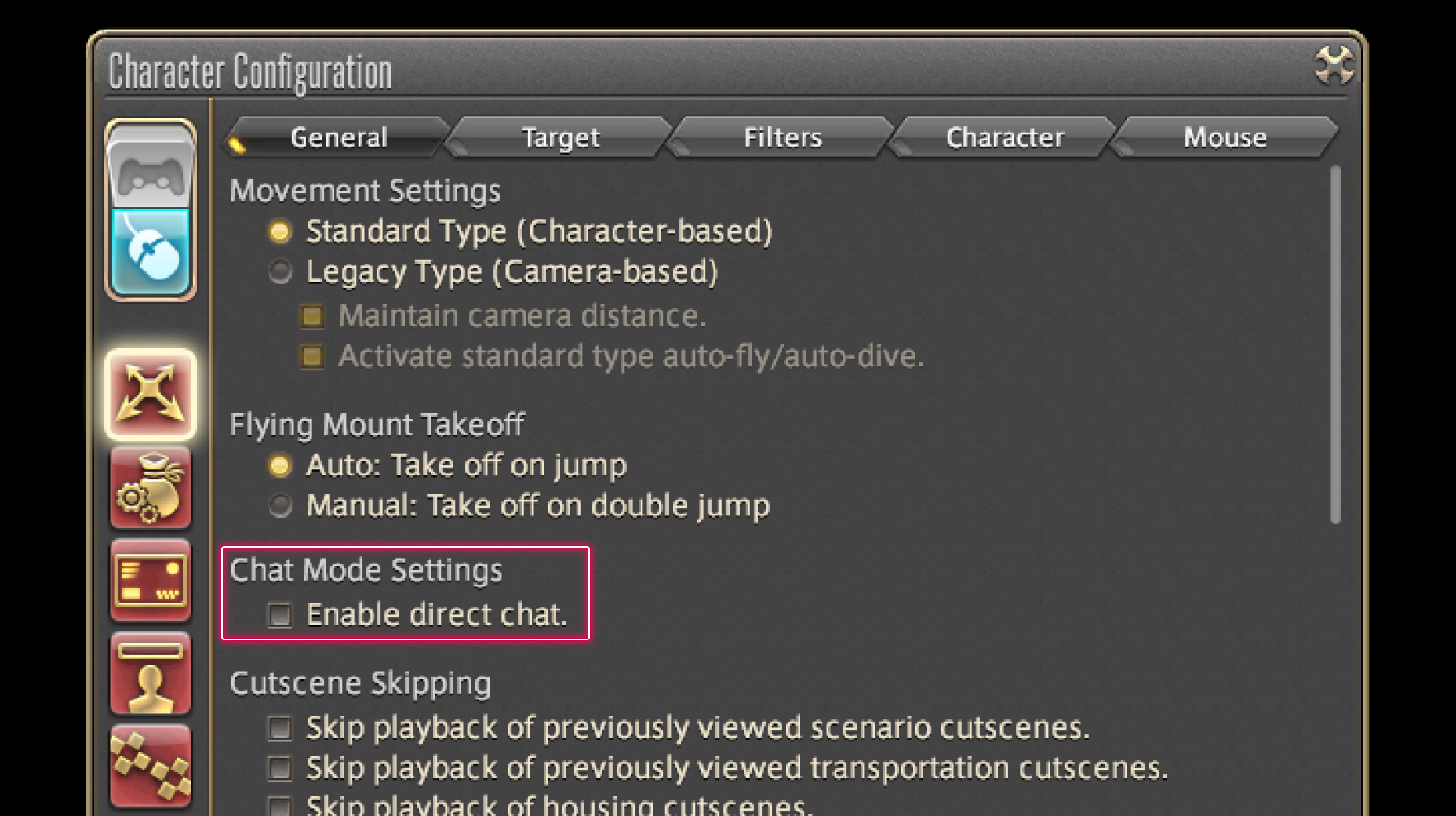
3. Try out what you've learned!
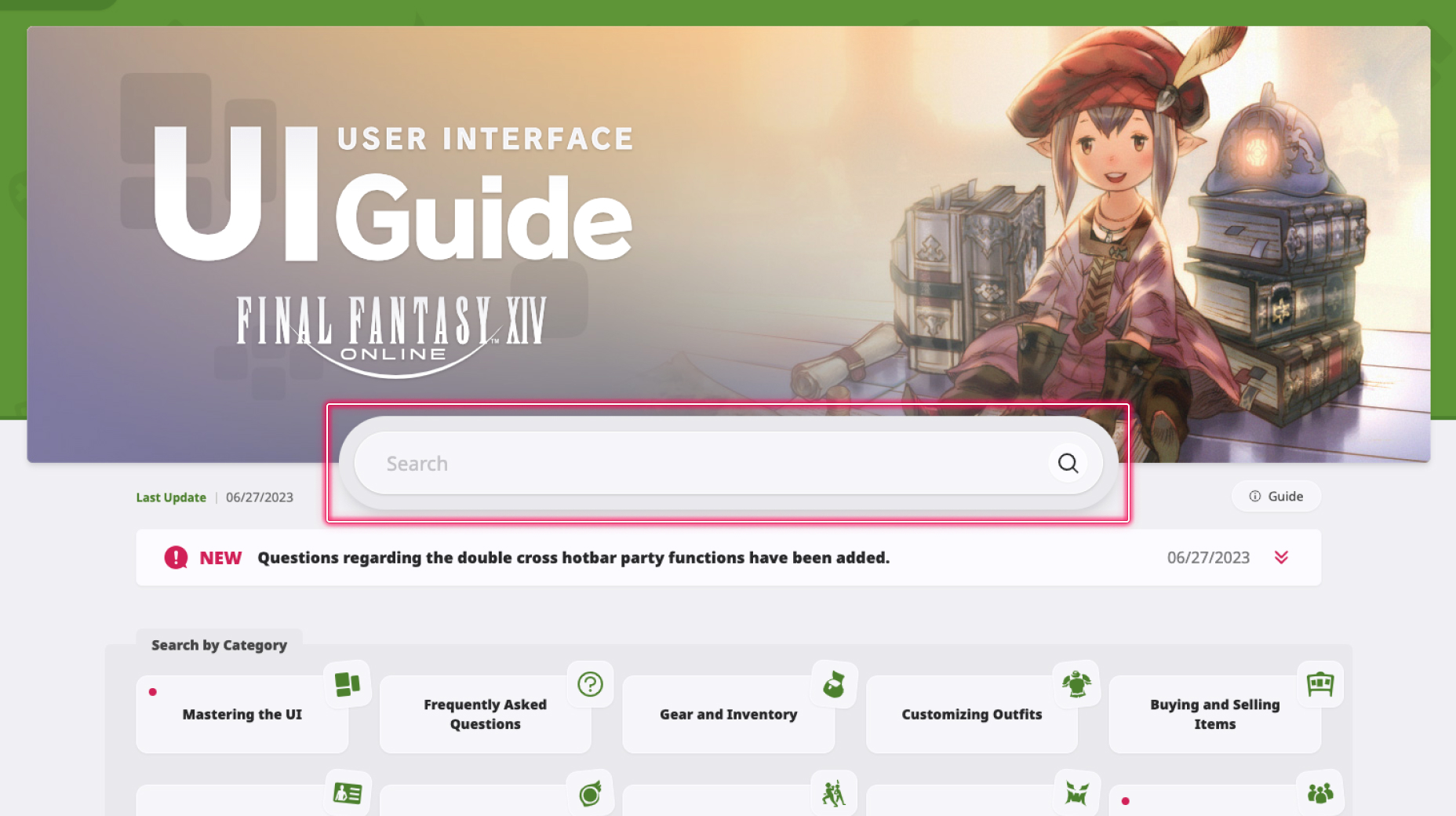
1. Enter a term to search.
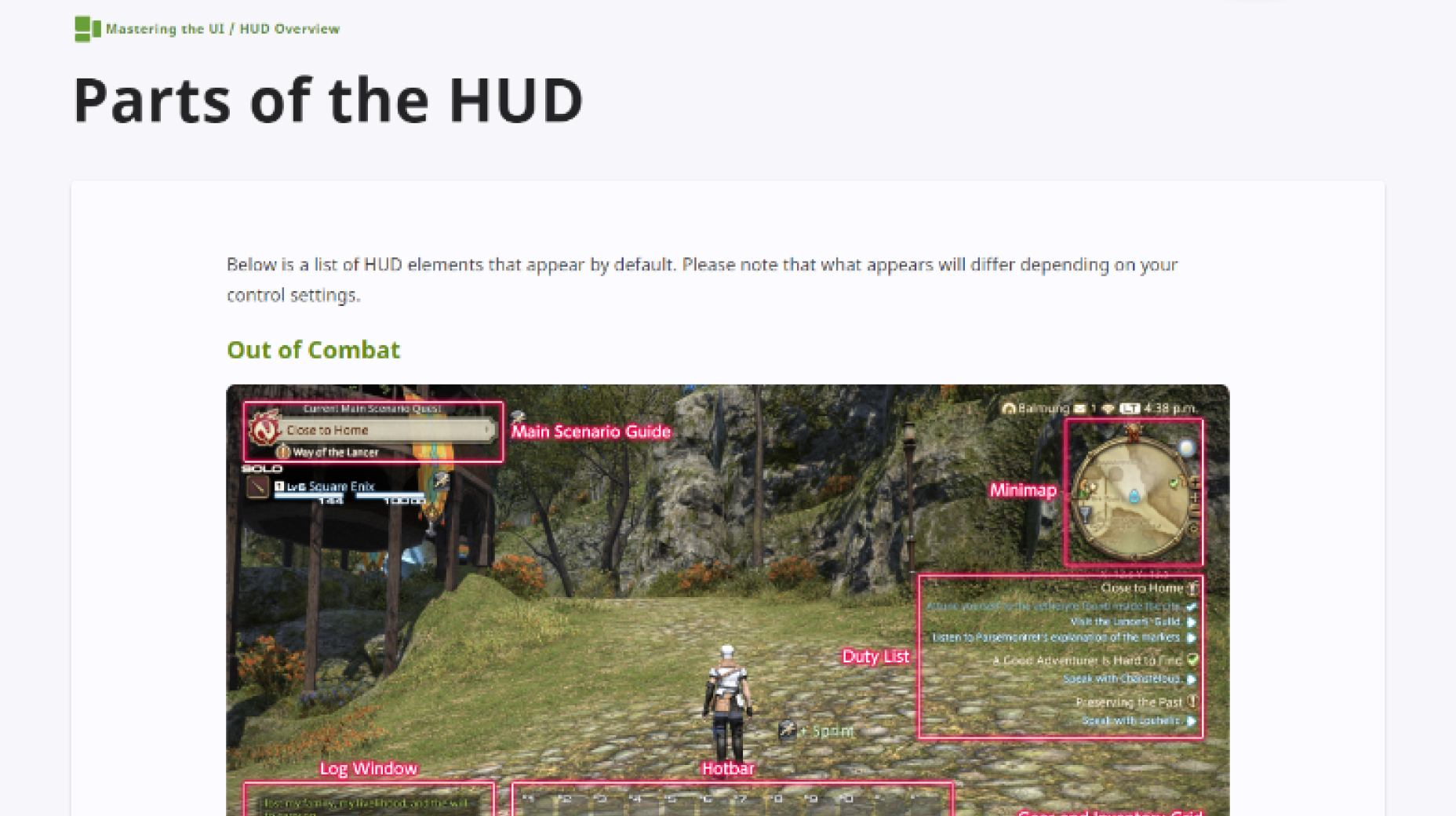
2. Find a topic and review its contents.
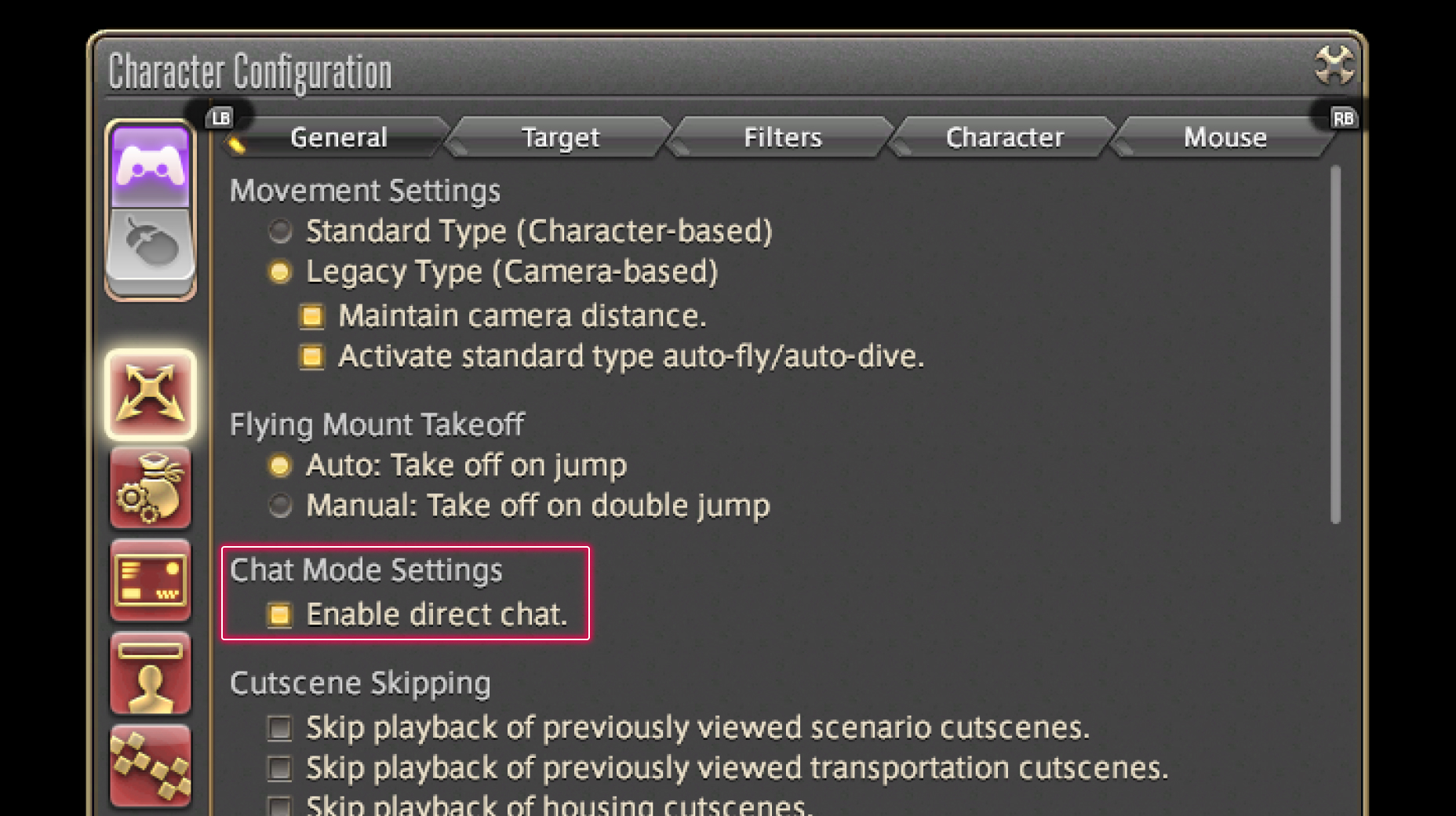
3. Try out what you've learned!
(You can view this screen at any time from the guide icon.)
Communication / Chat
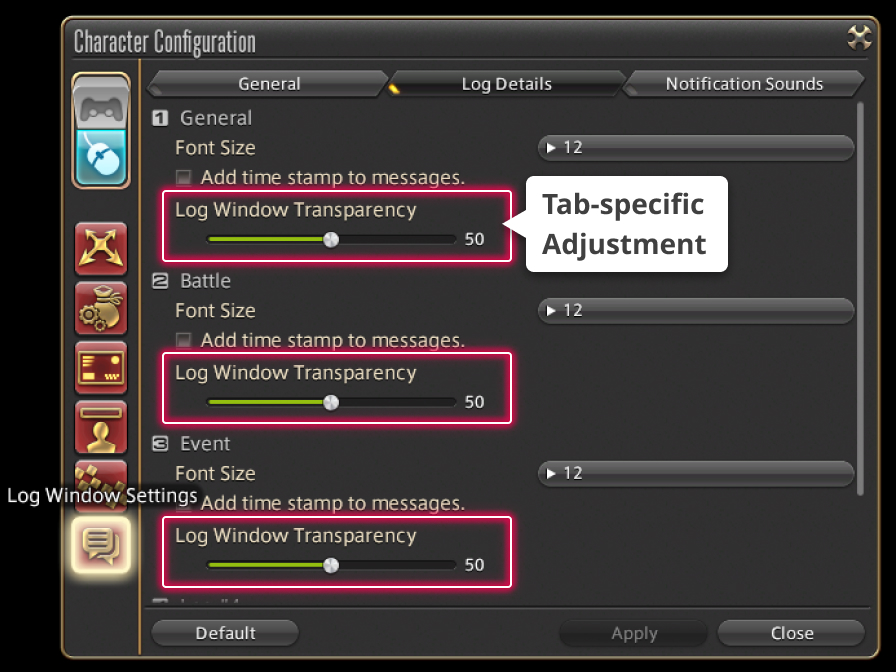
From the main menu, select System and open the Character Configuration menu, then select the Log Window Settings tab from the column on the left. Under Log Details, adjust the Log Window Transparency slider to your desired level. Transparency can be adjusted separately for different log window tabs.
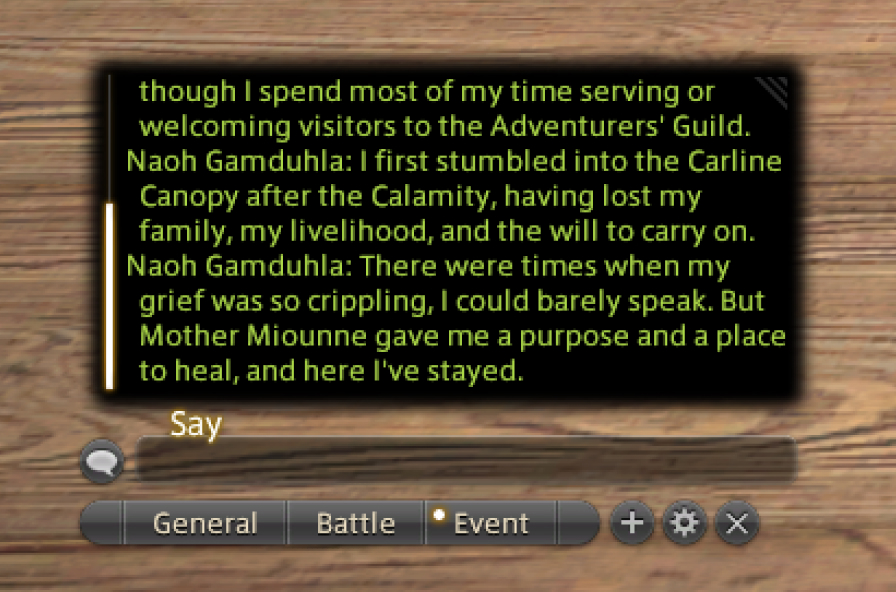 Log Window Transparency: 0
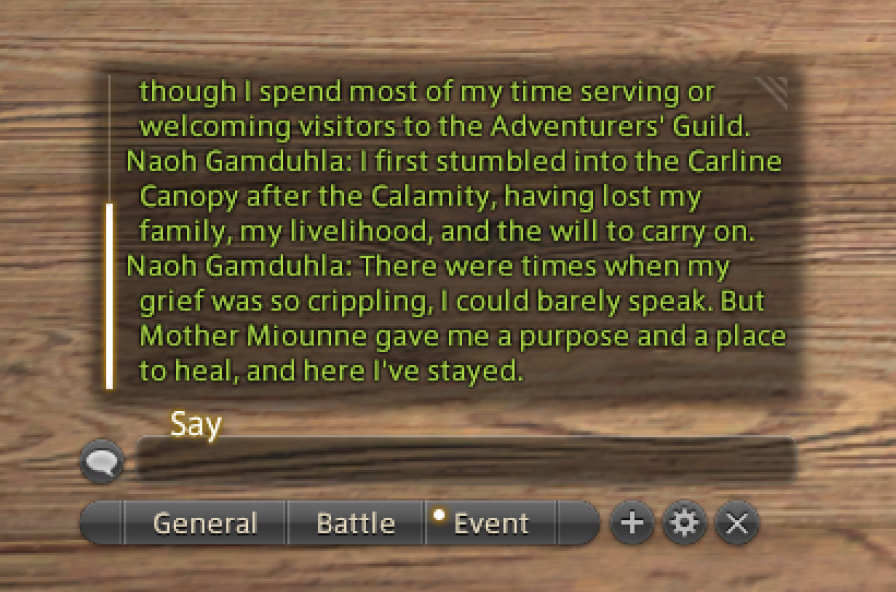 Log Window Transparency: 50
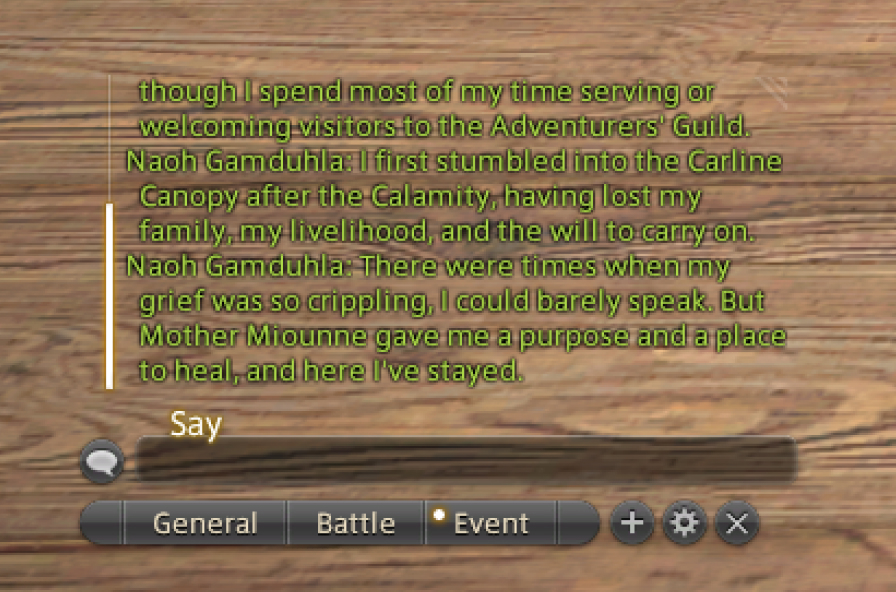 Log Window Transparency: 100
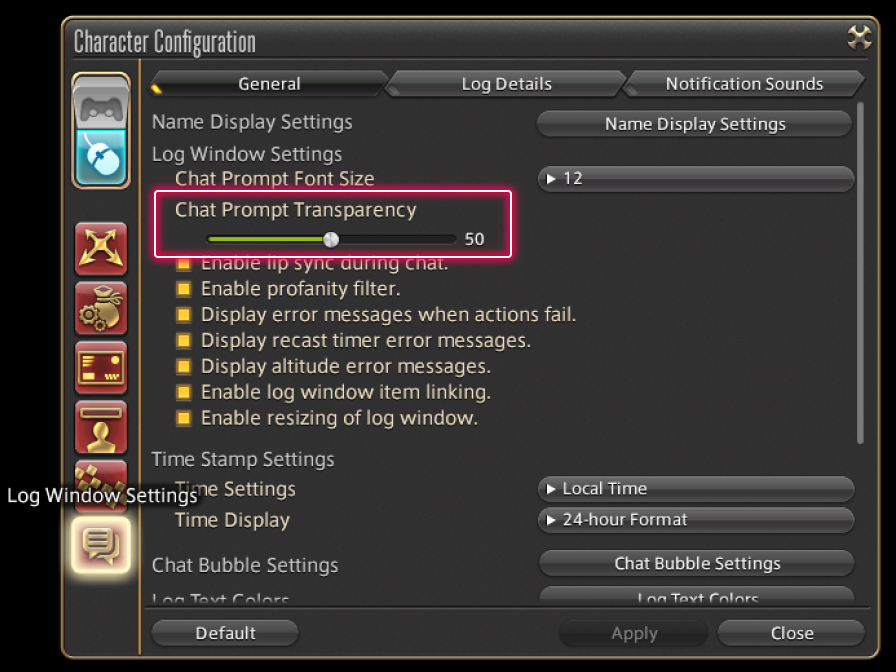
Adjusting Log Window Chat Prompt Transparency
From the main menu, select System and open the Character Configuration menu, then select the Log Window Settings tab from the column on the left. Under General, adjust the Chat Prompt Transparency slider to your desired level.
 Chat Prompt Transparency: 0
 Chat Prompt Transparency: 50
 Chat Prompt Transparency: 100
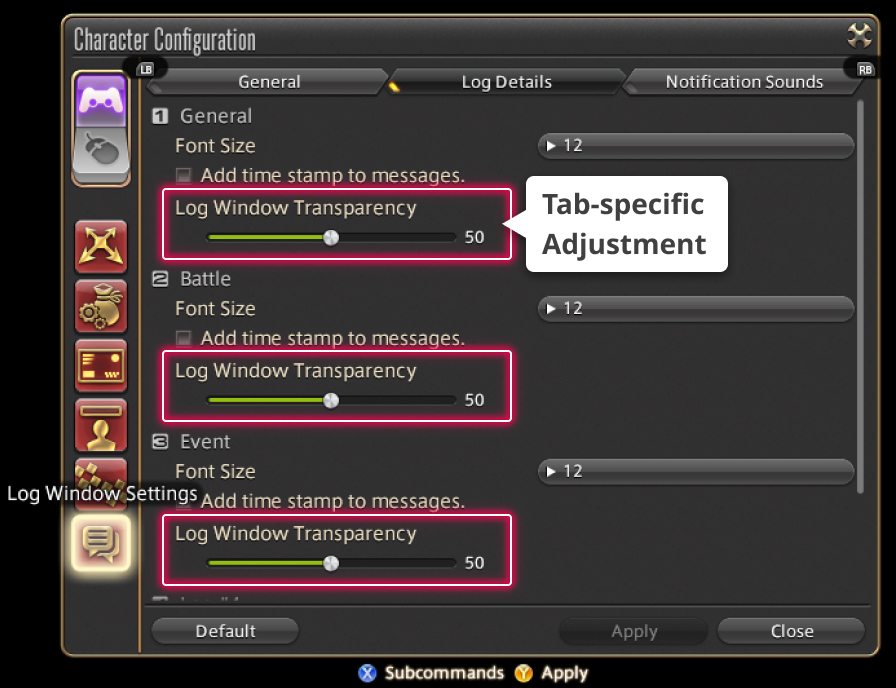
From the main menu, select System and open the Character Configuration menu, then select the Log Window Settings tab from the column on the left. Under Log Details, adjust the Log Window Transparency slider to your desired level. Transparency can be adjusted separately for different log window tabs.
Log Window Transparency: 0
Log Window Transparency: 50
Log Window Transparency: 100
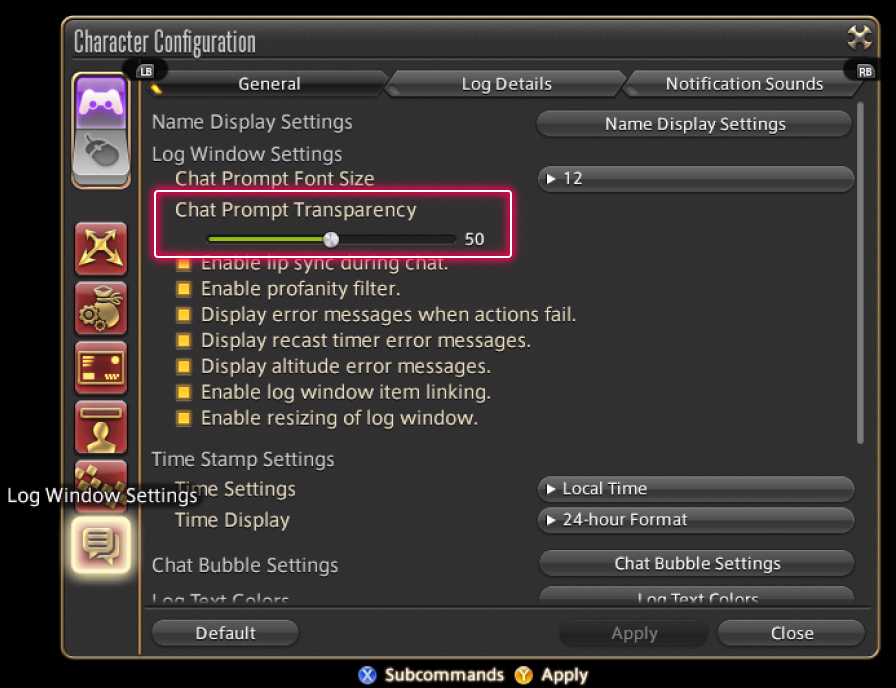
Adjusting Log Window Chat Prompt Transparency
From the main menu, select System and open the Character Configuration menu, then select the Log Window Settings tab from the column on the left. Under General, adjust the Chat Prompt Transparency slider to your desired level.
Chat Prompt Transparency: 0
Chat Prompt Transparency: 50
Chat Prompt Transparency: 100