The user interface, or UI for short, refers to the various on-screen elements and menus through which a player interacts with the game. The UI in FFXIV can be adjusted in myriad ways to ensure an enjoyable gaming experience.
This guide will explain how to adjust the UI, and offer tips to help you navigate the game.
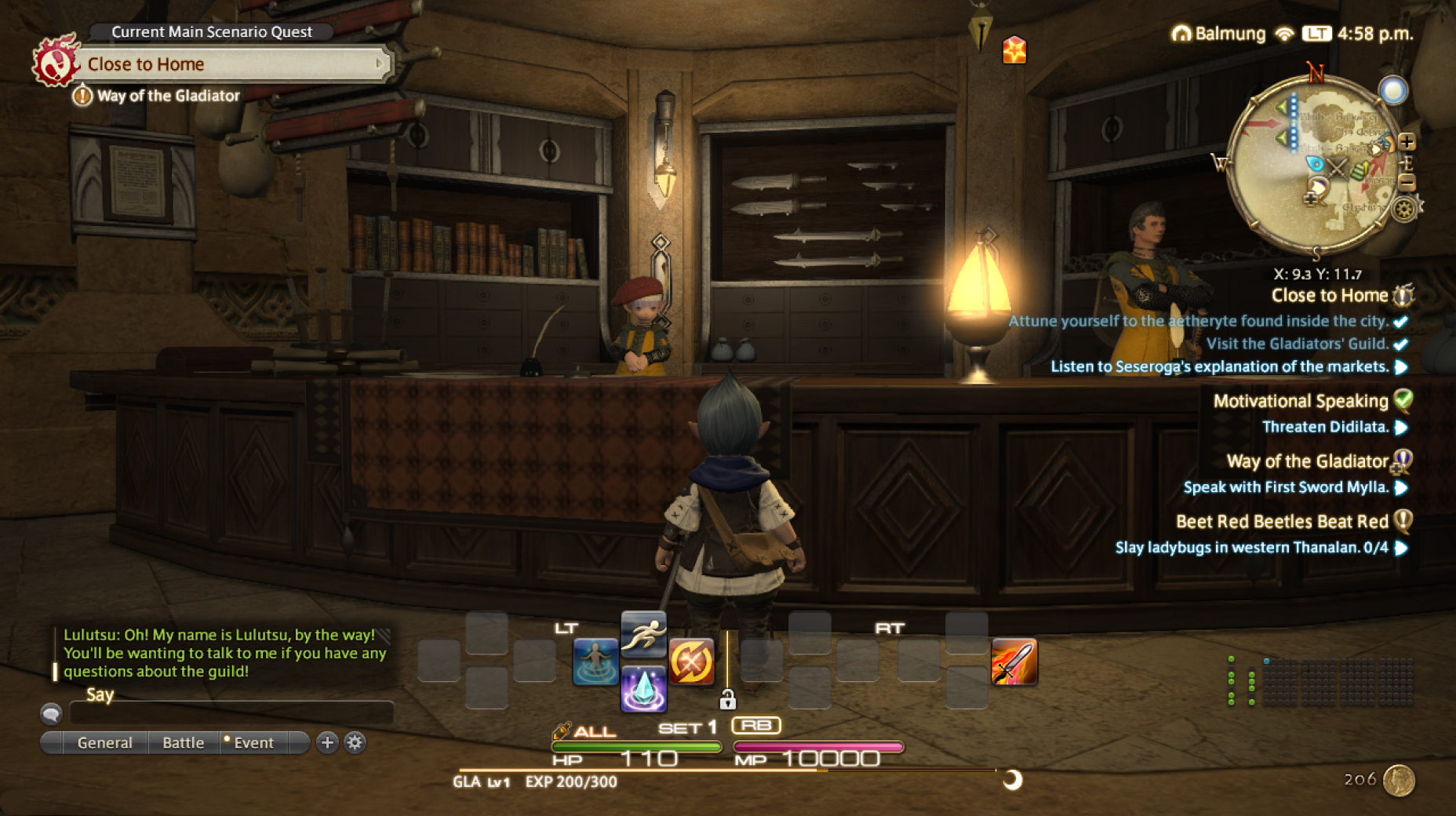
Use the default settings…
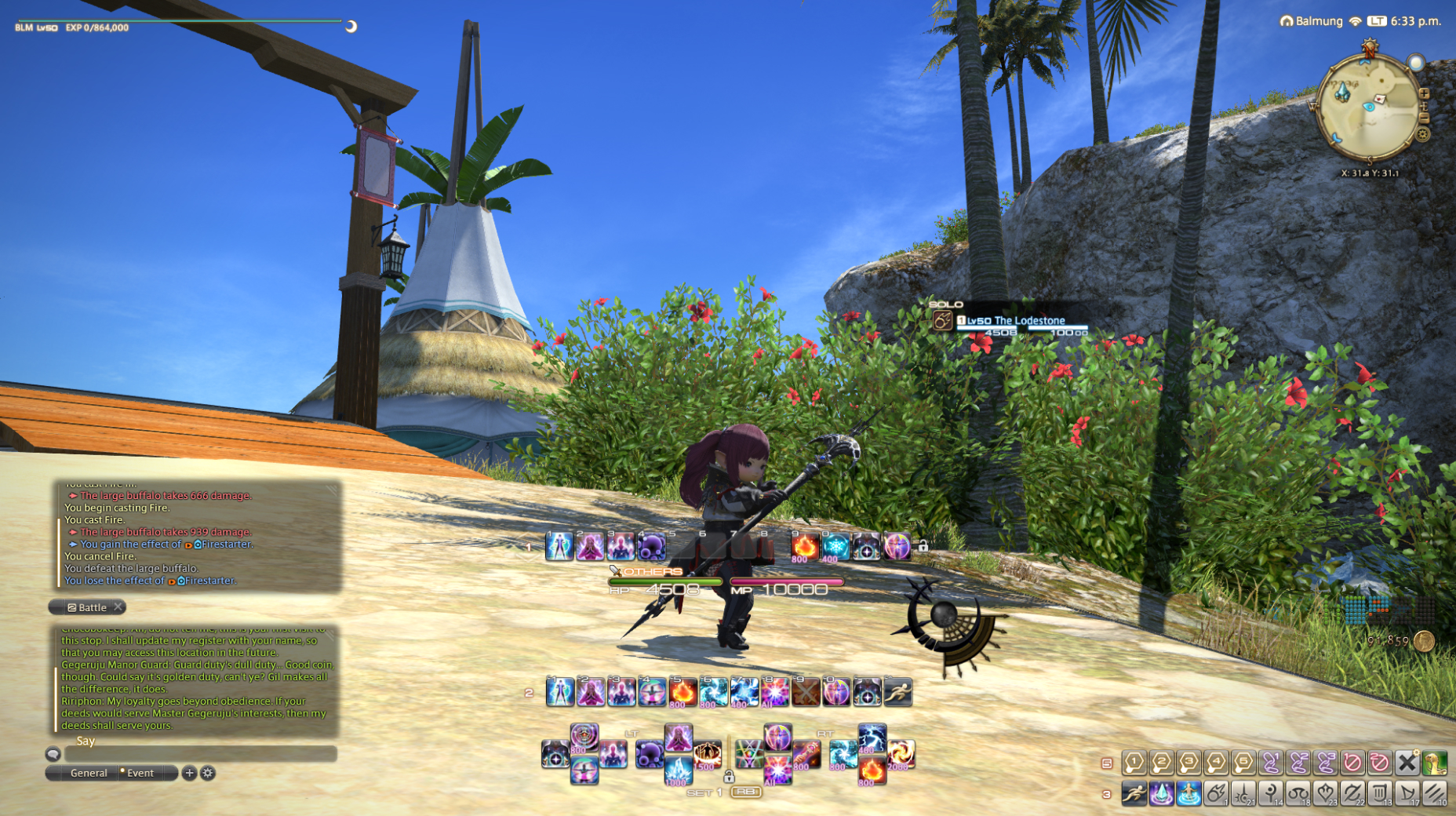
Or try something creative!
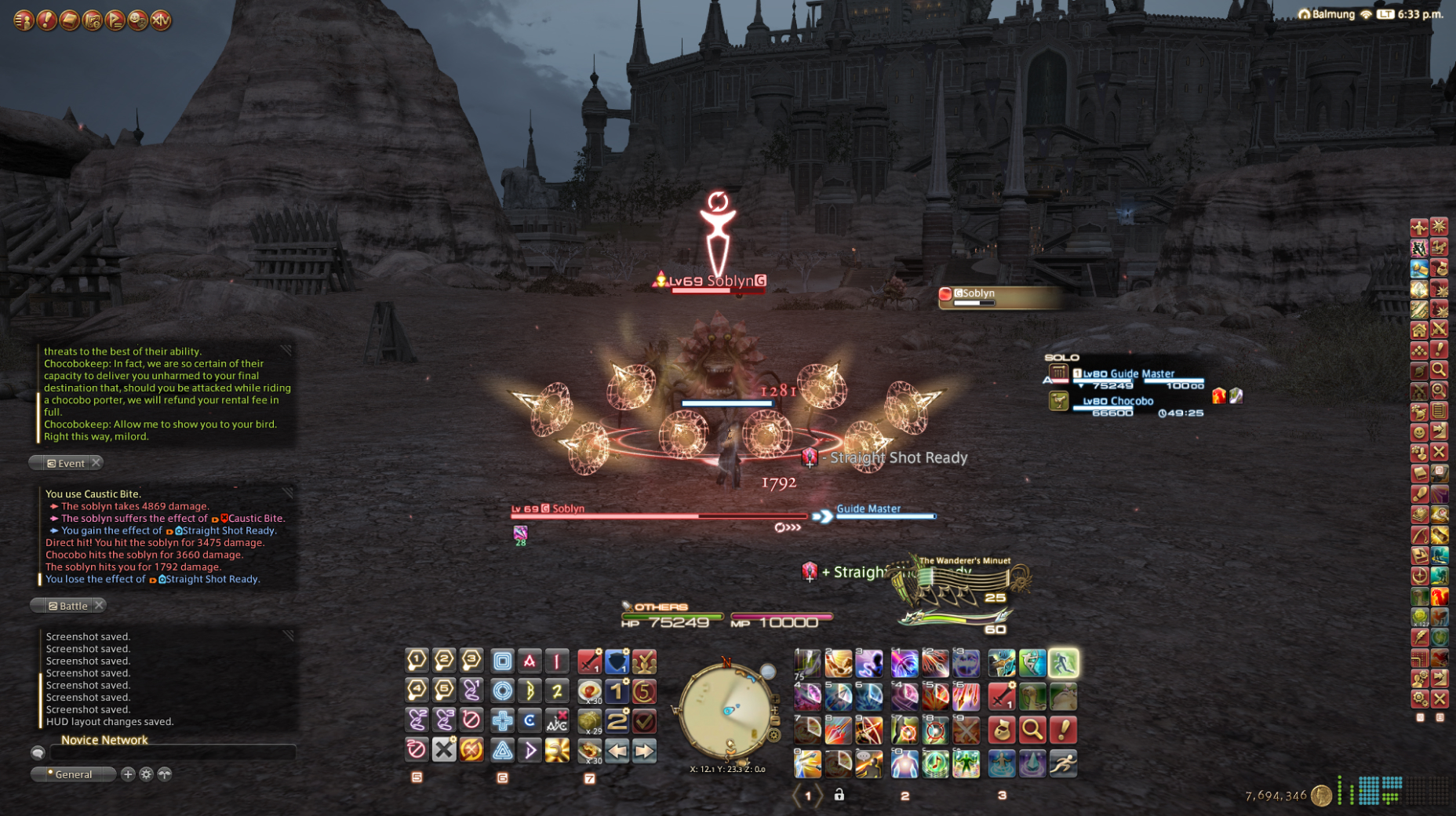
The possibilities are endless!
Use the default settings…
Or try something creative!
The possibilities are endless!
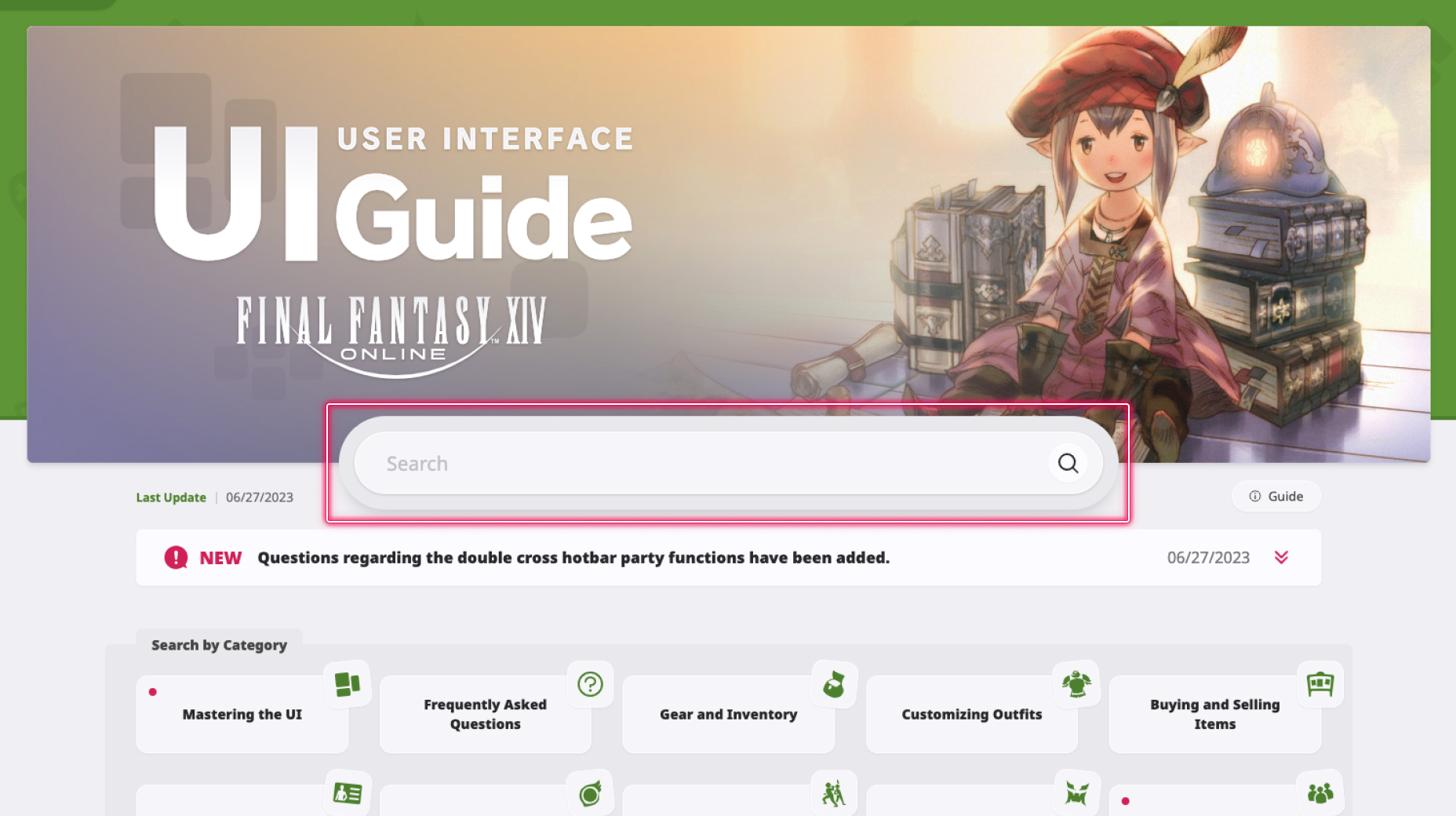
1. Enter a term to search.
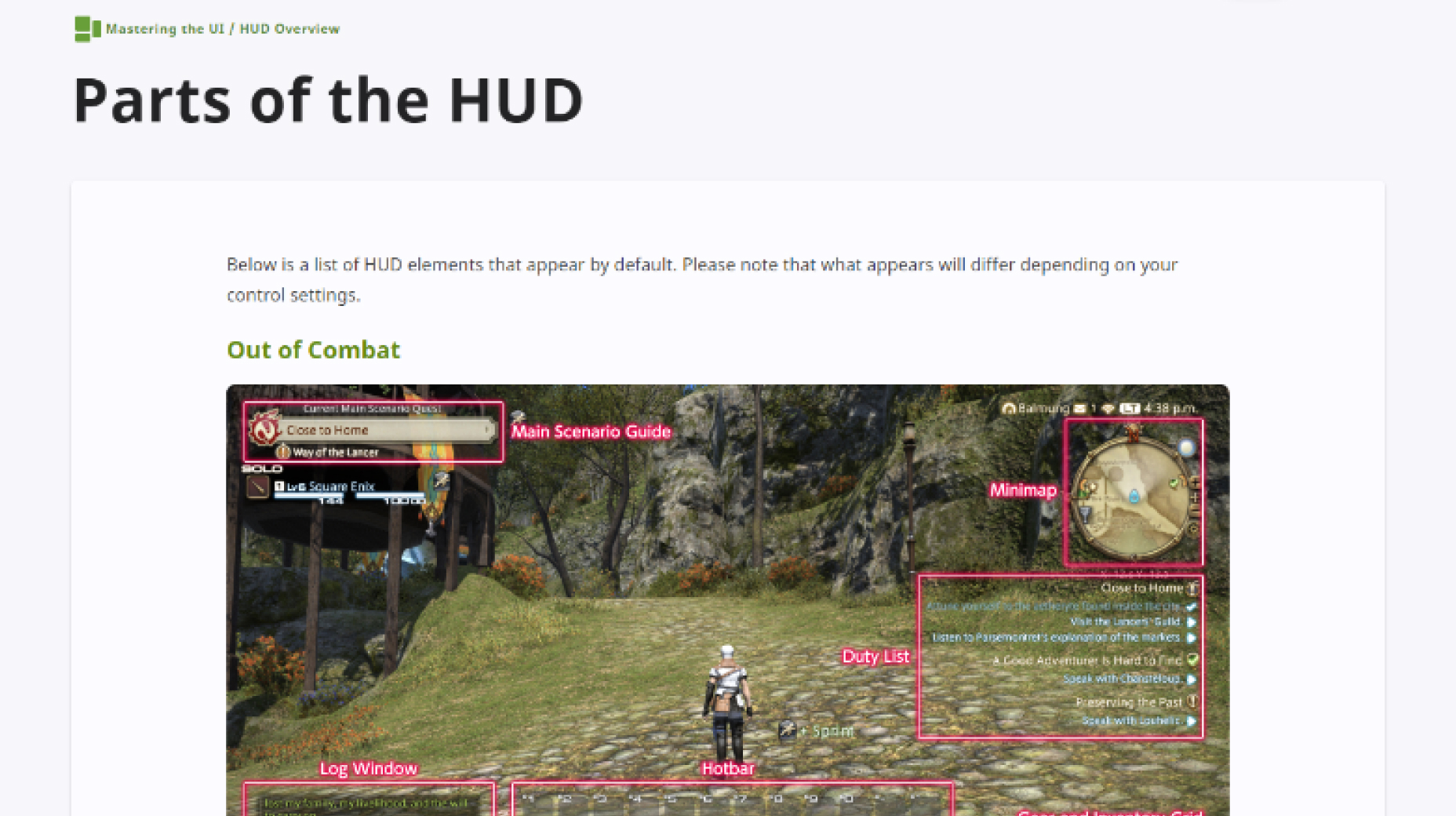
2. Find a topic and review its contents.
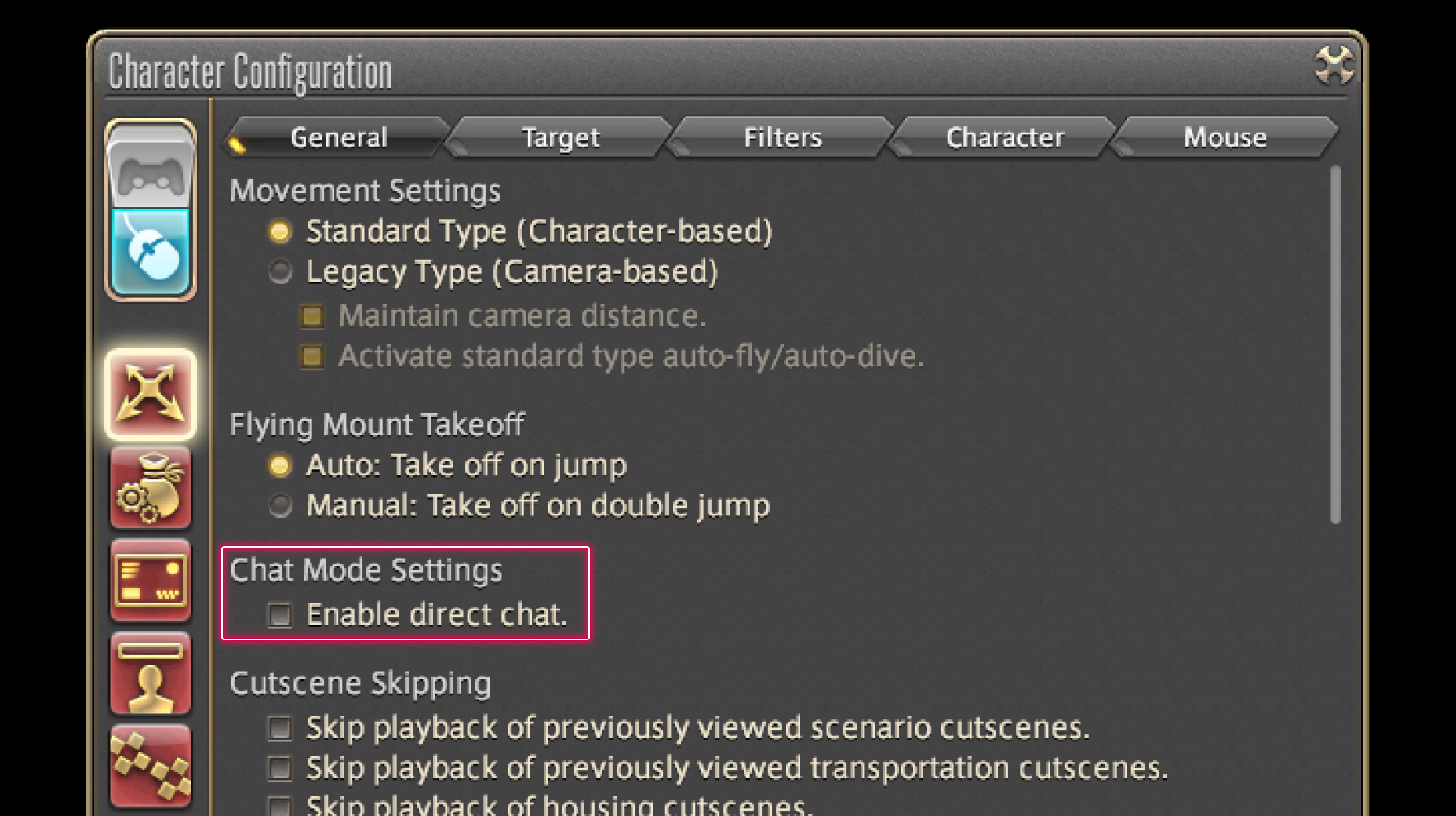
3. Try out what you've learned!
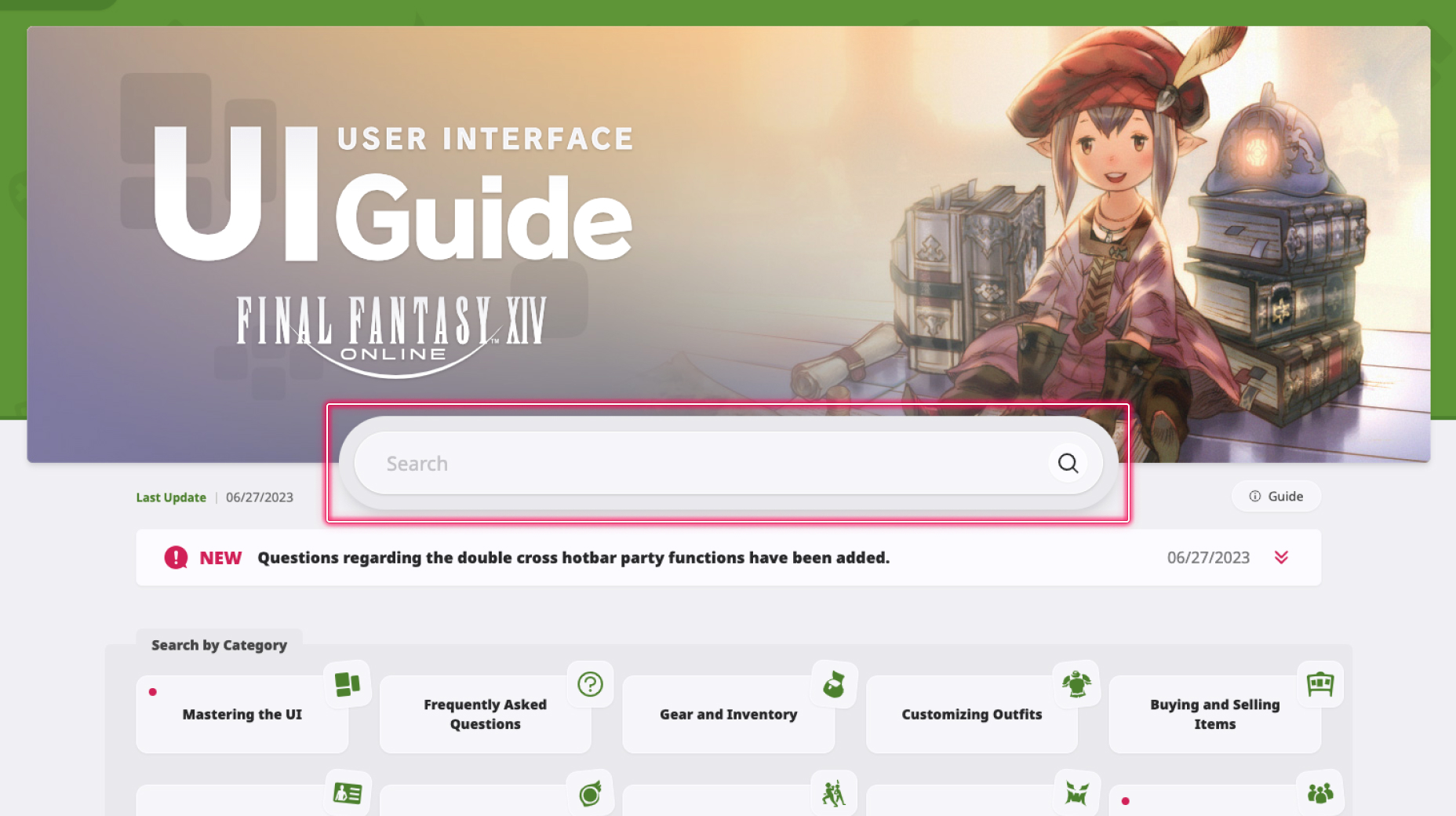
1. Enter a term to search.
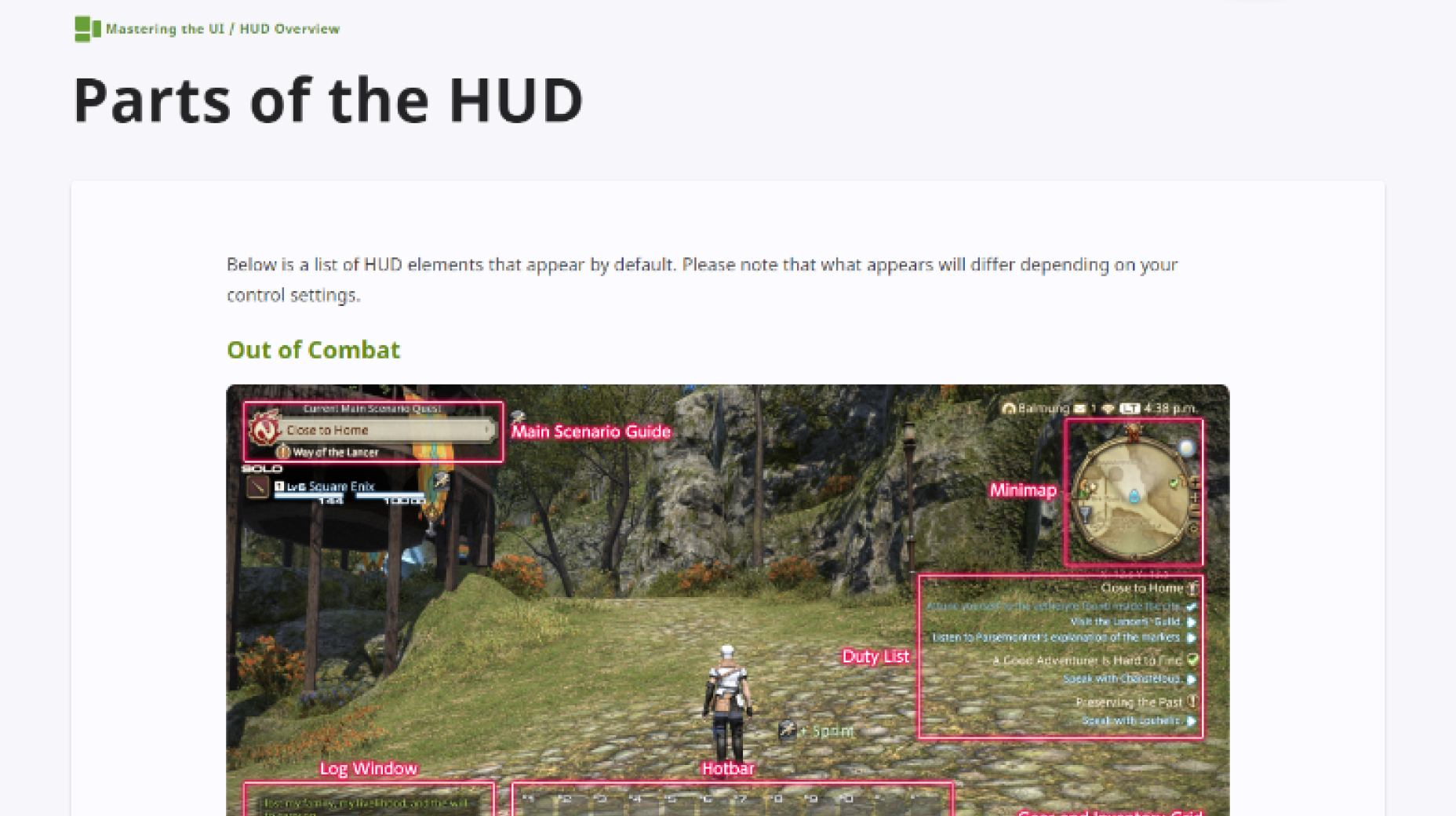
2. Find a topic and review its contents.
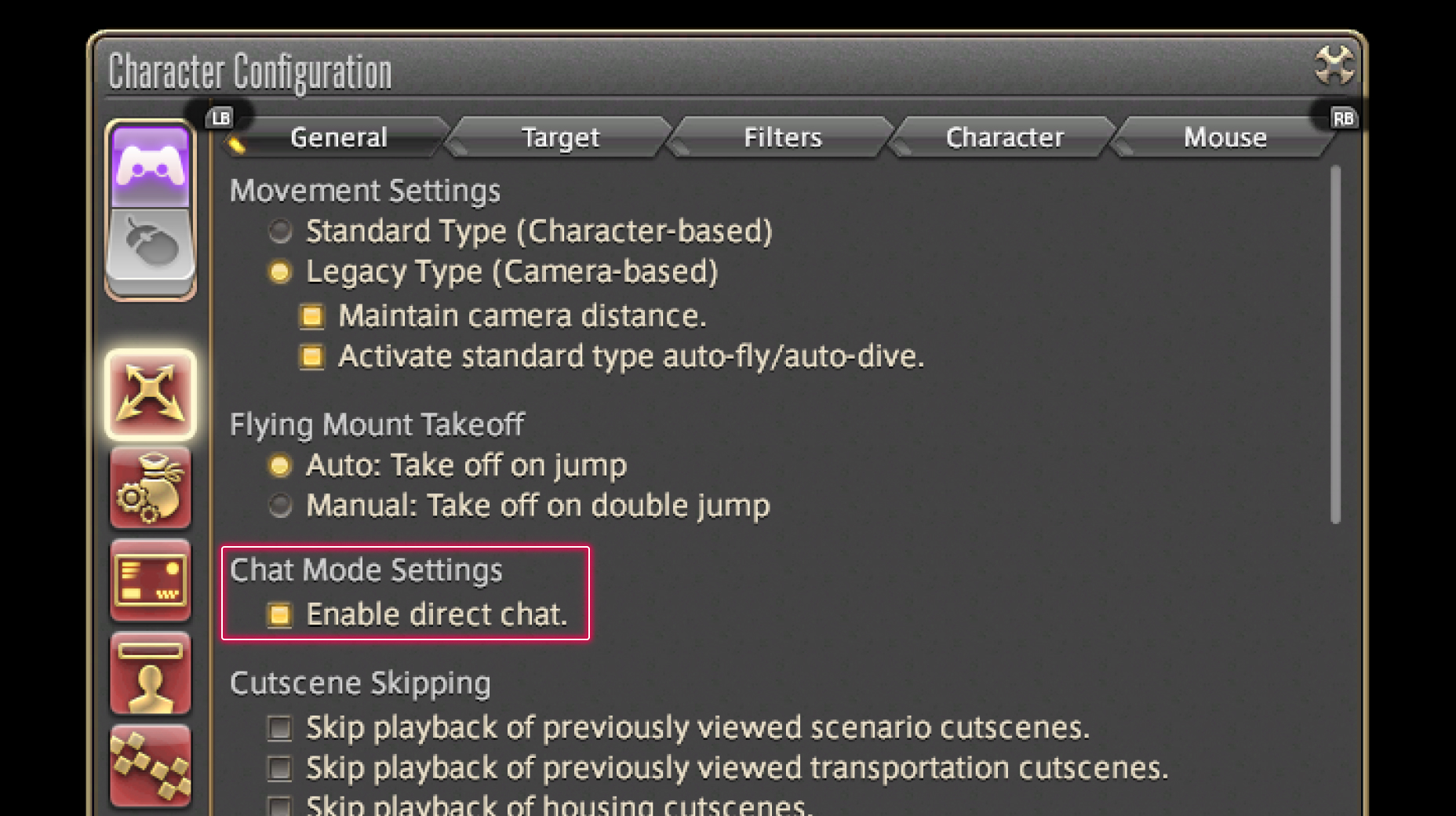
3. Try out what you've learned!
(You can view this screen at any time from the guide icon.)
Group Pose / Screenshots
While using Group Pose, the Portrait Mode feature allows you to easily take screenshots in portrait format.
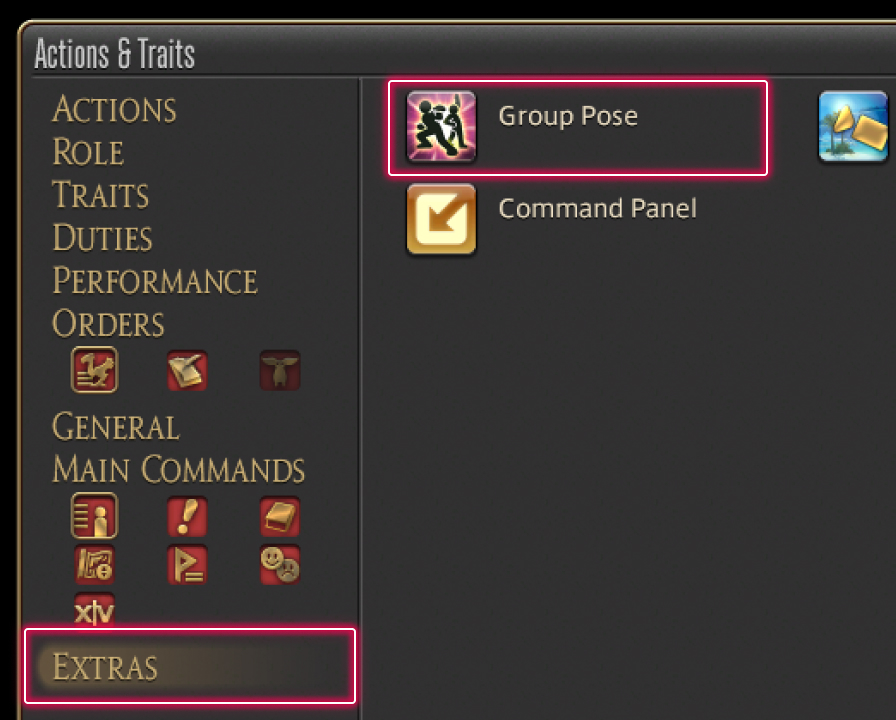
From the main menu, select Character and open the Actions & Traits menu. From the Extras tab on the left, select Group Pose. You may also wish to drag the action to your hotbar for easier access.
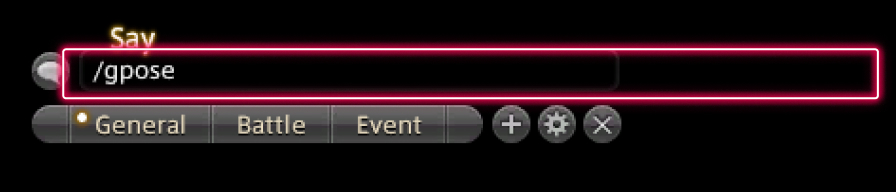
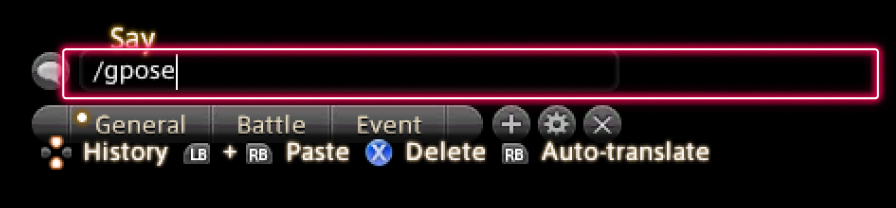
Alternatively, Group Pose can be activated by typing "/grouppose" or "/gpose" in the log window.

From the Group Pose Settings menu, select Portrait Preview under Camera Settings. With this option active, you can verify the final appearance of your screenshot while adjusting various settings.

From the Group Pose Settings menu, select Portrait Mode under Camera Settings. Selecting this button will display the image at full size, rotated 90 degrees, ready for you to take screenshots.
Screenshots are saved to the Screenshot Folder listed under the Other Settings tab in the System Configuration menu.
From the main menu, select Character and open the Actions & Traits menu. From the Extras tab on the left, select Group Pose. You may also wish to drag the action to your hotbar for easier access.
Alternatively, Group Pose can be activated by typing "/grouppose" or "/gpose" in the log window.
From the Group Pose Settings menu, select Portrait Preview under Camera Settings. With this option active, you can verify the final appearance of your screenshot while adjusting various settings.
From the Group Pose Settings menu, select Portrait Mode under Camera Settings. Selecting this button will display the image at full size, rotated 90 degrees, ready for you to take screenshots.
Screenshots are saved to the Screenshot Folder listed under the Other Settings tab in the System Configuration menu.